
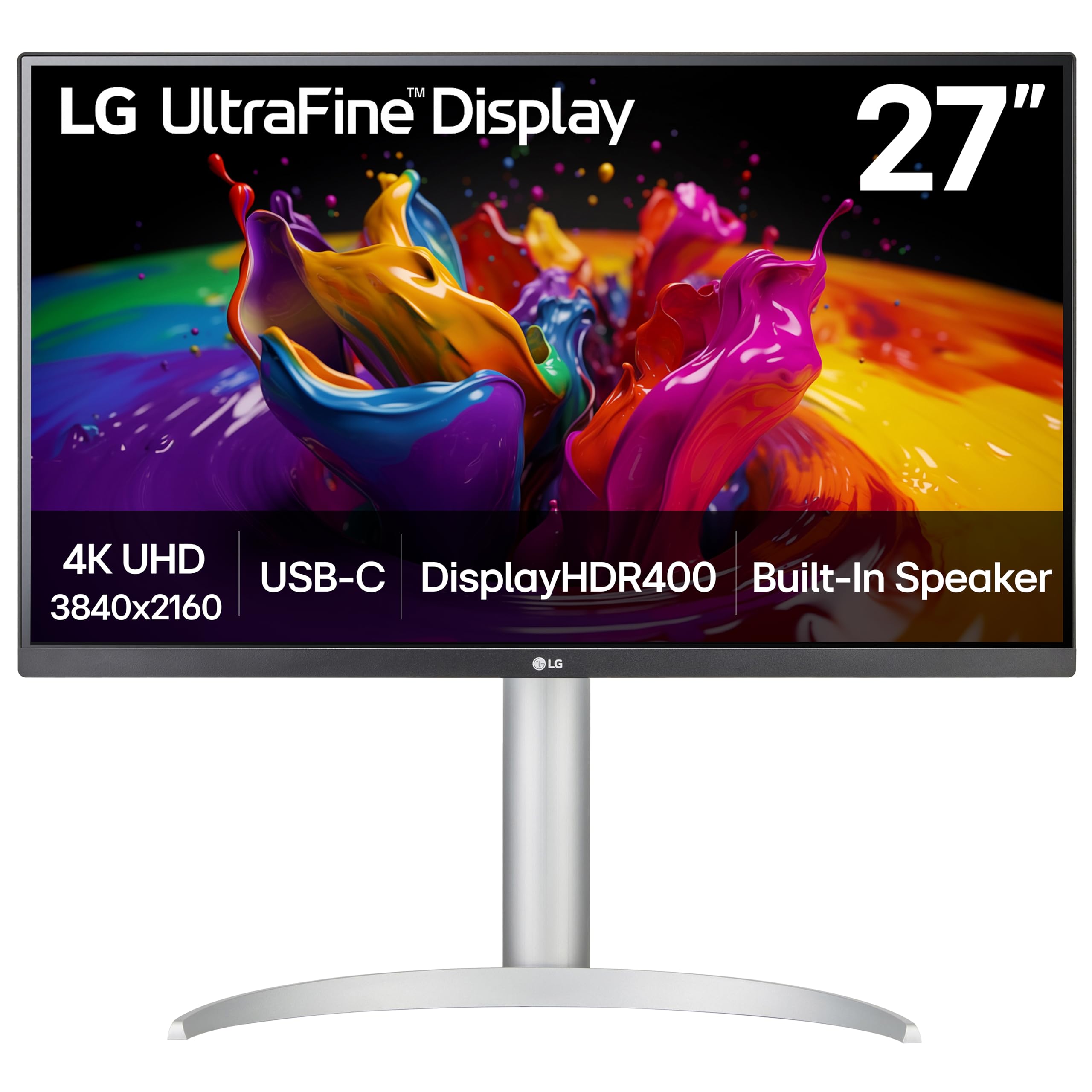
Where the LG 27UP850K-W Earns Its Price
This pick comes down to three decision criteria we weight heavily when evaluating monitors: resolution-to-price ratio, color accuracy for practical work, and connectivity that reduces desk clutter. The 27UP850K-W hits all three.
On resolution: 4K (3840×2160) at 27 inches gives you roughly 163 pixels per inch—enough that individual pixels disappear at normal viewing distance, making text crisp and fine detail legible without scaling headaches. A 1440p alternative at this size costs less ($200–250) but forces you into either smaller UI elements or operating system scaling that can cause blurriness in certain applications. We'd pick 4K here because the jump from 1440p to 4K is visible and genuinely useful for document work, photo editing, and spreadsheet visibility—unlike jumping from 4K to 5K, which offers marginal gains for most workflows.
On color: LG's published specifications list 95% DCI-P3 coverage, the color space used in cinema and professional photo work—so this monitor renders nearly all the colors a professional camera or design application expects, where a standard sRGB-only panel falls short for photo editing or video grading. The published-review record backs the claim up: TechteamGB's colorimeter test of the prior-generation 27UP850—LG's earlier model with the same headline panel specs—measured 97% DCI-P3 coverage, slightly above what LG quotes. Near-DCI-P3 coverage at this price is the real value; the spec is more typical of higher-priced professional displays.
On connectivity: USB-C with 90W power delivery is the deal-maker for laptop users. It consolidates display, data, and charging into one cable, eliminating the need for a separate dock. Cheaper 4K monitors ($250–300) lack USB-C entirely or include it without power delivery. Pricier alternatives add Thunderbolt 3 or higher wattage, but 90W is sufficient for most laptops under 15 inches.
The trade-off: this is not a gaming monitor (60Hz refresh rate, 5ms response time are standard—not competitive); that same TechteamGB review found motion handling sluggish for fast games. Nor is it a budget pick; the low-$300s is mid-tier, not entry-level. Street pricing also moves around—PCWorld covered an April 2026 Amazon deal that briefly cut it from its $380 list price to $260, so it pays to check the current listing. We're recommending it over both cheaper 1440p/USB-C hybrids (which lack 4K sharpness) and $500+ reference monitors (which add features like calibration ports and higher HDR brightness that most users don't need). The standout is that sweet spot: professional color at consumer pricing.
The Panel, Ports, and Stand
- Panel: 27-inch 4K IPS with 95% DCI-P3 coverage and VESA DisplayHDR 400 certification—professional-leaning color on a mid-market screen
- Ports: one USB-C cable carries the 4K signal, data, and up to 90W of laptop charging, replacing a separate dock
- Sharpness: 4K at 27 inches keeps text crisp with no visible pixels at normal viewing distance
- Stand: height, pivot, and tilt adjustment out of the box, so eye-level positioning doesn't require a monitor arm
Trade-offs to Weigh
This monitor's strength (professional color accuracy) assumes you own a color-managed workflow. If you're editing photos or video but have never calibrated your monitor or soft-proofed against a color space, the DCI-P3 gamut advantage is wasted—you'll get correct colors displayed, but your eye won't be trained to see the difference. Also, at $341, it's still mid-market; if your budget is hard-capped at $250, a solid 27-inch 1440p IPS will serve general work perfectly well, and the resolution step down is less painful than the color gamut step down would be for a professional.
The Scorecard
What We Like
- 4K resolution at 27 inches eliminates pixel visibility and makes dense information (spreadsheets, code, multi-window layouts) genuinely easier to parse compared to 1440p at the same screen size.
- DCI-P3 95% color gamut is a specification more common on higher-priced professional displays. It's non-negotiable for photo editing, video work, or color-sensitive design; consumer sRGB monitors cannot render the full color palette these workflows expect.
- USB-C with 90W power delivery consolidates display, data transfer, and laptop charging into one connection. For remote workers or anyone juggling multiple cables, this alone justifies choosing this monitor over cheaper alternatives without USB-C.
- The VESA DisplayHDR 400 certification means this monitor handles HDR content (streaming video, modern games, HDR photos) at the entry HDR tier. It's not a $1,500 reference HDR display, but it's a genuine improvement for HDR viewing beyond standard SDR.
- Height, pivot, and tilt adjustment on the stand allows you to position the screen at your eye level, reducing neck strain during 8-hour workdays. This is not a luxury—ergonomic positioning directly impacts comfort and long-term health.
What Could Be Better
- 60Hz refresh rate and 5ms response time make this unsuitable for gaming. If you play competitive shooters or fast-action titles, a 144Hz+ gaming monitor will feel dramatically smoother. This monitor prioritizes color and clarity over motion smoothness.
- DisplayHDR 400 is entry-level HDR. At 400 nits peak brightness, HDR content looks somewhat better than standard video, but you won't get the bright highlights of reference HDR displays rated at 1,000 nits or more. Treat the HDR certification as a bonus for streaming video, not a reason to buy.
- At 27 inches, 4K resolution is excellent but not extreme. Designers and video professionals sometimes pair 32-inch or larger displays with 4K for maximum screen real estate. If you work with large documents, CAD files, or multi-window layouts, a 32-inch 4K might be worth the extra cost and desk space.
What Our Monitor Research Weighs
Our monitor recommendations rest on five core criteria, ranked by practical impact: resolution (actual pixel density and legibility for your screen size), color accuracy and gamut (essential only if color-dependent work applies), refresh rate and response time (relevant only for motion-heavy use), connectivity and power delivery (reduces cable overhead and dock requirements), and ergonomics (stand adjustability, eye strain prevention).
We prioritize specification accuracy and manufacturer documentation over claimed consumer sentiment or awards, because a monitor's performance is determined by its hardware, not opinion. We compare price-to-spec across tiers—entry-level ($150–250), mid-tier ($250–500), and premium ($500+)—to identify where you get genuine capability gain versus diminishing returns.
Key decision thresholds: 4K at 27 inches is meaningful; 5K is diminishing return. DCI-P3 matters only if your workflow produces or consumes color-critical content. USB-C power delivery above 65W is practical; below that, it cannot charge larger laptops. 60Hz is fine for static work; competitive gaming and fast animation benefit from 120Hz+.
We do not conduct hands-on testing or claim personal experience. Our recommendations are grounded in specification comparison, manufacturer claims verified against documented standards (VESA DisplayHDR thresholds, DCI-P3 definition), published third-party reviews attributed to their source, and real-world task matching—connecting your specific workflow to the specs that matter.
Which Setups It Fits
Who Should Buy This
Product photographers, photo editors, and videographers working with color-graded footage will find the DCI-P3 95% gamut non-negotiable. Settling for an sRGB-only monitor forces a second color-space conversion and introduces inaccuracy.
Remote workers and laptop users who dock their machine daily will recoup the extra cost in eliminated cable clutter and docking stations. USB-C with 90W means your laptop charges, displays, and transfers files through one connection.
Knowledge workers running spreadsheet-heavy or code-heavy workflows benefit from 4K clarity. The extra vertical and horizontal pixels make dense layouts legible without scaling, reducing eye strain over an 8-hour day.
Anyone upgrading from a 1440p or older 1080p monitor will notice the sharpness gain immediately; it's one of the few monitor spec upgrades that feels tangible in day-to-day use.
Who Should Skip This
Gamers should look elsewhere. 60Hz is uncompetitive for any fast-paced title; expect 144Hz+ gaming monitors in the $300–400 range with better motion handling—the LG UltraGear 27GP850-B under “Also worth a look” below is the kind of panel to target.
Budget-conscious buyers unwilling to spend above $250 should consider 27-inch 1440p IPS monitors, 24-inch 4K alternatives, or the Dell S2721HN covered further down this page. Each loses some advantages here (color gamut or screen real estate) but costs $100+ less.
Anyone needing studio-grade color accuracy for professional printing or broadcast should invest in a reference monitor ($800–1,500) with hardware calibration, a wider color gamut (Adobe RGB 99%), and factory calibration certificates. The 27UP850K-W is professional-capable, not professional-grade.
Also worth a look
These are the monitors we weighed most seriously against the LG, and the specific trade-off that kept each one out of the top slot.
Dell UltraSharp U2723QE. The same 27-inch 4K, 90W-USB-C formula plus a full USB hub with Ethernet and Dell's higher-contrast IPS Black panel—but at $639.99 list on Dell.com, it nearly doubles the LG's price for gains most desks won't notice outside dark-room contrast and port count.
ASUS ProArt Display PA279CV. A 27-inch 4K rival that ships factory-calibrated (Delta E < 2, Calman Verified, per ASUS's published specifications)—appealing if out-of-box accuracy matters more than gamut. It targets 100% sRGB/Rec. 709 rather than the LG's wider 95% DCI-P3, and its USB-C tops out at 65W, short of what larger laptops draw.
LG UltraGear 27GP850-B. The counter-pick for gamers this guide's top choice doesn't serve: LG lists it at 2560×1440 with a 165Hz refresh rate (overclockable to 180Hz) and 1ms response. You give up 4K sharpness and laptop charging to get motion clarity the 27UP850K-W simply doesn't have.
The Dell S2721HN, our budget pick, gets its own section below rather than a capsule here.
Monitor Specs, Translated
Resolution (3840×2160): This is the pixel count—four times as many pixels as 1080p on the same size screen. Below about 110 PPI, individual pixels become visible at arm's length; above roughly 220 PPI, further gains are imperceptible, which is why 4K is the sweet spot at this size.
Color gamut (DCI-P3 95%): This percentage measures which subset of real-world colors the monitor can display. sRGB (the consumer standard) is narrower; DCI-P3 is the cinema and professional photography standard. 95% means this monitor covers nearly all DCI-P3 colors, but not 100%—the remaining 5% is rarely encountered in practice.
USB-C power delivery (90W): The monitor can deliver up to 90 watts to a connected device via USB-C. Most 13-15 inch laptops draw 45–65W; 90W covers larger machines. Without USB-C, you need a separate power adapter.
DisplayHDR 400: This VESA certification confirms the monitor achieves 400 nits peak brightness and supports HDR color spaces. 400 nits is entry-level HDR (reference HDR displays reach 1,000+) but sufficient for streaming video and modern content.
Refresh rate (60Hz): The screen refreshes 60 times per second. Fine for static work; too slow for gaming or animation playback where higher rates (120Hz+) reduce flicker sensation.
Response time (5ms): The gray-to-gray pixel transition speed. 5ms is standard for IPS panels; gaming monitors boast 1ms. For non-gaming work, this difference is imperceptible.
Is 4K Worth It at Your Viewing Distance?
Extra pixels only help if you sit close enough to see them. Enter the screen and how far away you sit to get the pixel density and a straight answer on whether 4K sharpness is discernible for you.
Sharpness for this setup
PPI = √(width² + height²) in pixels ÷ diagonal in inches. “Pixels blend” distance uses the 1-arcminute acuity limit (3438 ÷ PPI inches) — sit farther and individual pixels are indistinguishable to normal 20/20 vision. The 4K verdict compares your distance to that same limit for a 1440p panel of equal size. Comfortable distance uses a 30–40° horizontal field of view. Assumes 20/20 vision; sharper eyesight resolves detail slightly closer.
LG 27UP850K vs. the Budget Pick
| Feature | LG 27UP850K-W 27-inch UltraFine ... | Dell S2721HN 27-inch FHD IPS Monitor |
|---|---|---|
| Pick | Best Overall | Best Value |
| Price | $341.87 | $149.99 |
| Key Features |
|
|
| Link | See Today's Best Price | See Today's Best Price |

Dell S2721HN 27-inch FHD IPS Monitor
$149.99At $149.99, the Dell S2721HN delivers a 27-inch display at half the LG's price, making it genuinely accessible for budget-conscious buyers. You get a stable IPS panel, Full HD resolution, and AMD FreeSync support—enough for everyday work and casual gaming. The ComfortView low blue light feature addresses eye strain during long sessions. However, you're stepping down significantly: the LG offers 4K resolution (roughly 4x the pixel count, about double the pixel density) and a USB-C port with power delivery for streamlined connectivity. Refresh rate is the one spec where the Dell leads—its 75Hz panel refreshes slightly faster than the LG's 60Hz—though both are modest against modern gaming standards. For photo editing, video work, or anyone prioritizing screen clarity, these gaps matter. The Dell suits office tasks and basic content consumption; the LG serves creative professionals willing to spend more.
- Resolution drops from 4K to Full HD, resulting in noticeably lower pixel density and detail at 27 inches.
- No USB-C connectivity or power delivery, requiring separate cables for peripherals and charging.
- No HDR support, and the stand lacks the height and pivot adjustment the LG's height/pivot/tilt stand provides.
The split is clean: the LG earns its premium only if you'll use the 4K sharpness, the wider color gamut, or the USB-C charging. If your day is email, documents, and video—no photo work, no laptop docking—the Dell's FHD IPS panel covers all of it at half the price, and the money saved buys more elsewhere.
Monitor Questions, Answered
Should I get a 27-inch 4K monitor, or would a 32-inch be better for my desk?
At 27 inches with 4K resolution (3840×2160), you get a pixel density of roughly 163 pixels per inch—sharp enough that individual pixels are hard to see at normal viewing distance. A 32-inch 4K monitor drops that to about 138 PPI, meaning text and fine details become noticeably softer unless you sit farther back. If your desk space is limited or you sit closer than arm's length away, 27 inches is the practical choice. You'll avoid the need to scale up your operating system's text, which can cause blurriness in some applications. Conversely, if you have room and prefer a larger viewing area without moving your chair back, 32-inch works—just budget for the larger footprint and consider whether your graphics card can comfortably drive 4K at higher frame rates.
What does USB-C with 90W power delivery actually do for me?
USB-C with power delivery lets your monitor charge a connected laptop or tablet through the same cable that carries the video signal. With 90W delivery, you can power most 13- to 15-inch laptops and keep them fully charged while you work, eliminating the need for a separate power brick on your desk. This is genuinely useful if you hot-desk or want a cleaner setup. However, verify your laptop's power requirements—some 16-inch workstations need 100W or more. The monitor becomes a hub: you connect your laptop once, and it gets both display and power. Without this feature, you'd need a separate USB-C power adapter or traditional power cable, so the single-cable setup is a practical convenience rather than a luxury.
What is DCI-P3 95% color gamut, and do I need it?
DCI-P3 is a color standard used in film and digital content creation. A 95% rating means the monitor can display 95% of the full DCI-P3 palette, which covers most colors professionals use in photo editing, video work, and graphics design. For general computing—browsing, spreadsheets, video watching—this is overkill; standard sRGB monitors are fine. But if you edit photos, grade video, or design graphics professionally, DCI-P3 ensures colors you create match industry standards and look correct on other devices. It also means more vibrant, accurate colors for everyday content. The tradeoff: these monitors cost more than basic panels, and calibration tools (like a colorimeter) become worthwhile if precision matters. Determine whether color accuracy is essential for your actual work before paying for this spec.
Why does a monitor need VESA DisplayHDR 400, and will I see a real difference?
VESA DisplayHDR 400 means the monitor can deliver HDR (High Dynamic Range) content with peak brightness of 400 nits and extended contrast. HDR video has wider color ranges and brighter highlights than standard content, creating more depth and realism—visible in streaming services like Netflix, gaming, and professional footage if your source material is HDR-encoded. A non-HDR monitor simply can't display those details; it maps them to standard range, losing information. At the 400-nit level, you'll see noticeable improvement in bright scenes and highlights compared to a 300-nit SDR monitor. However, you need actual HDR content to benefit—older DVDs or websites don't use it. If you watch modern streaming films, play recent games, or work with HDR video files, this certification matters. If your media diet is mostly standard-dynamic-range content, you won't perceive a practical difference.
Does the height-adjustable and pivot stand actually matter, or is a fixed stand fine?
A height-adjustable stand lets you position the monitor so the top of the screen is at or slightly below eye level when you sit naturally—a basic ergonomic need that prevents neck strain during long work sessions. Tilt adjustment lets you angle the screen to reduce glare or reflections from windows and lights. Pivot rotation (portrait mode) is useful if you work with documents, spreadsheets, or code where vertical space matters more than width. A fixed stand forces you to improvise with books or risers, creating instability and wasted desk space. A monitor with these adjustments often costs little more than one without, so there's no real downside. If you spend 8+ hours daily at your monitor, ergonomic positioning isn't optional—invest in the adjustable stand. For casual use or if you already have an external arm mount, a fixed stand is acceptable.
Will my graphics card handle 4K smoothly, and what should I check before buying?
A 4K monitor at 60Hz requires significant bandwidth, but most modern graphics cards support it via DisplayPort or HDMI 2.0. However, if you want high frame rates (gaming at 100+ fps in 4K), you need a high-end GPU—entry-level cards will struggle. For static work (photo editing, design, office tasks), 60Hz is plenty. Check your GPU's output ports: older cards may only have HDMI 1.4, which limits 4K to 30Hz. Your monitor needs matching ports (HDMI 2.0, DisplayPort, or USB-C) to actually achieve 4K at full refresh rate. Pairing a 4K monitor with a GPU that can't drive it wastes the money you spent on the panel. Before purchasing, verify your graphics card's specs against the monitor's input requirements—this prevents frustrating bottlenecks and ensures you get the resolution and smoothness you paid for.